
Athlete
Use race checklists
Reusable checklist templates, and attaching one to a specific race.
Managing your templates
Open Races → Checklists to see every template available to you — Toro Coach’s built-in system templates, plus any you created yourself.
- + New template — start a blank template, optionally with a category and a sport it applies to.
- Save As — copy any template (including a system one) under a new name of your own that you can then edit freely.
- Filter by category or by source (mine vs. Toro Coach) to find one quickly.
- Only your own templates can be edited or deleted directly — system templates must be copied first with Save As.
Editing a template’s items
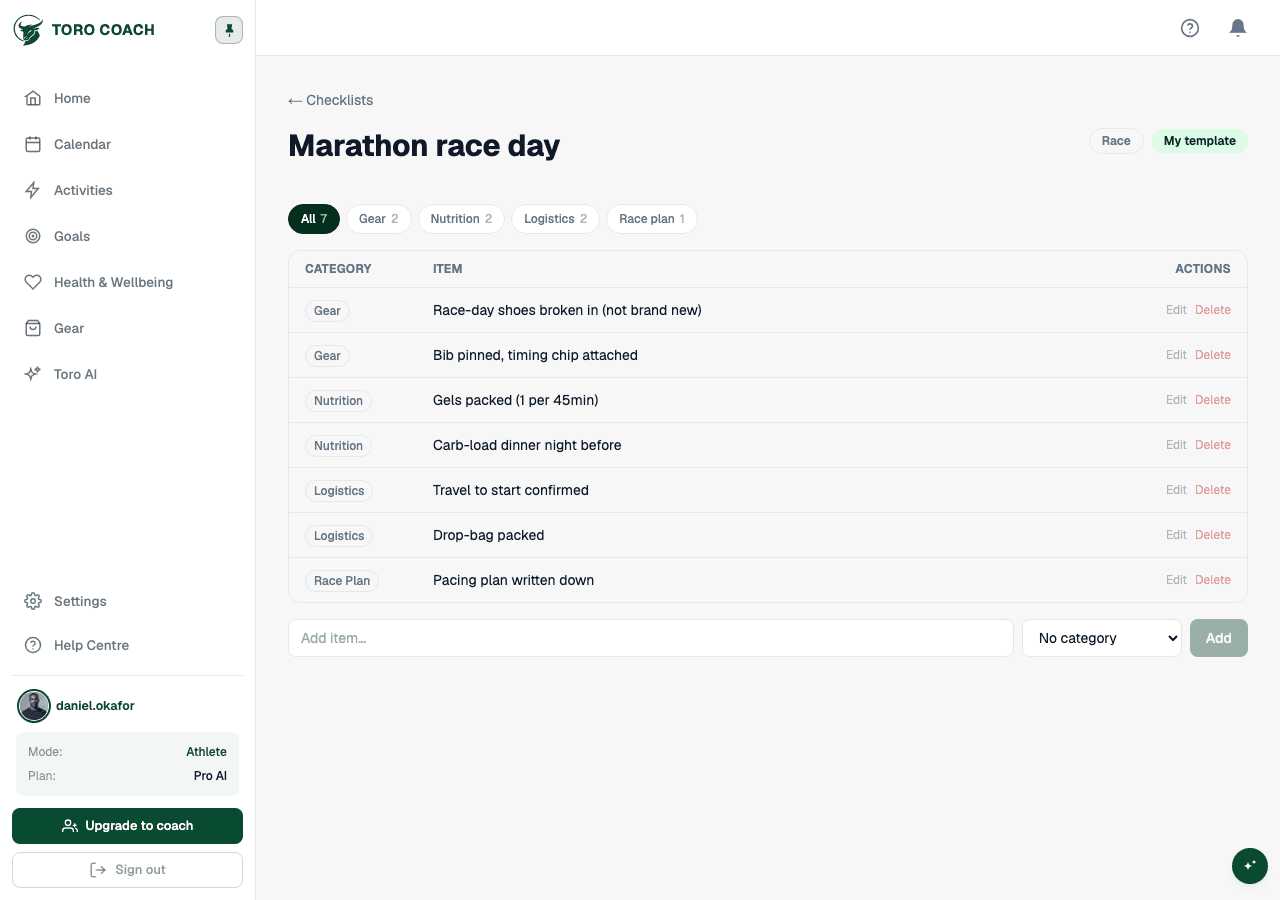
Open a template to add, edit, or remove its checklist items — this only changes the template itself, not any checklist you have already attached to a race from it.
Attaching a checklist to a race
- 1
Open a race and go to its Checklist tab.
- 2
+ Attach checklist, then pick a template, start blank, or search/filter by category, sport, or source.
- 3
Give the attached checklist its own name and confirm.
- 4
Check items off as you complete them — ticking, editing, or removing an item here only affects that race’s copy, not the template.
Sections and notes
- Items can be grouped into named sections (e.g. "Nutrition", "Gear") — use the section filter above a race’s checklist to focus on one at a time.
- Add a short note to any item for a reminder specific to that race.