
Review a session in depth
Charts, the 3D route map, zones, laps, effort, and your coach thread — everything for one session.
Open a session
Tap any session on your Plan calendar or in Activities to open its detail page. What you see depends on whether the session is planned only, completed, or unplanned (an activity with no matching plan).
- Overview — the plan vs. actual comparison, key performance stats, and rich per-sport details.
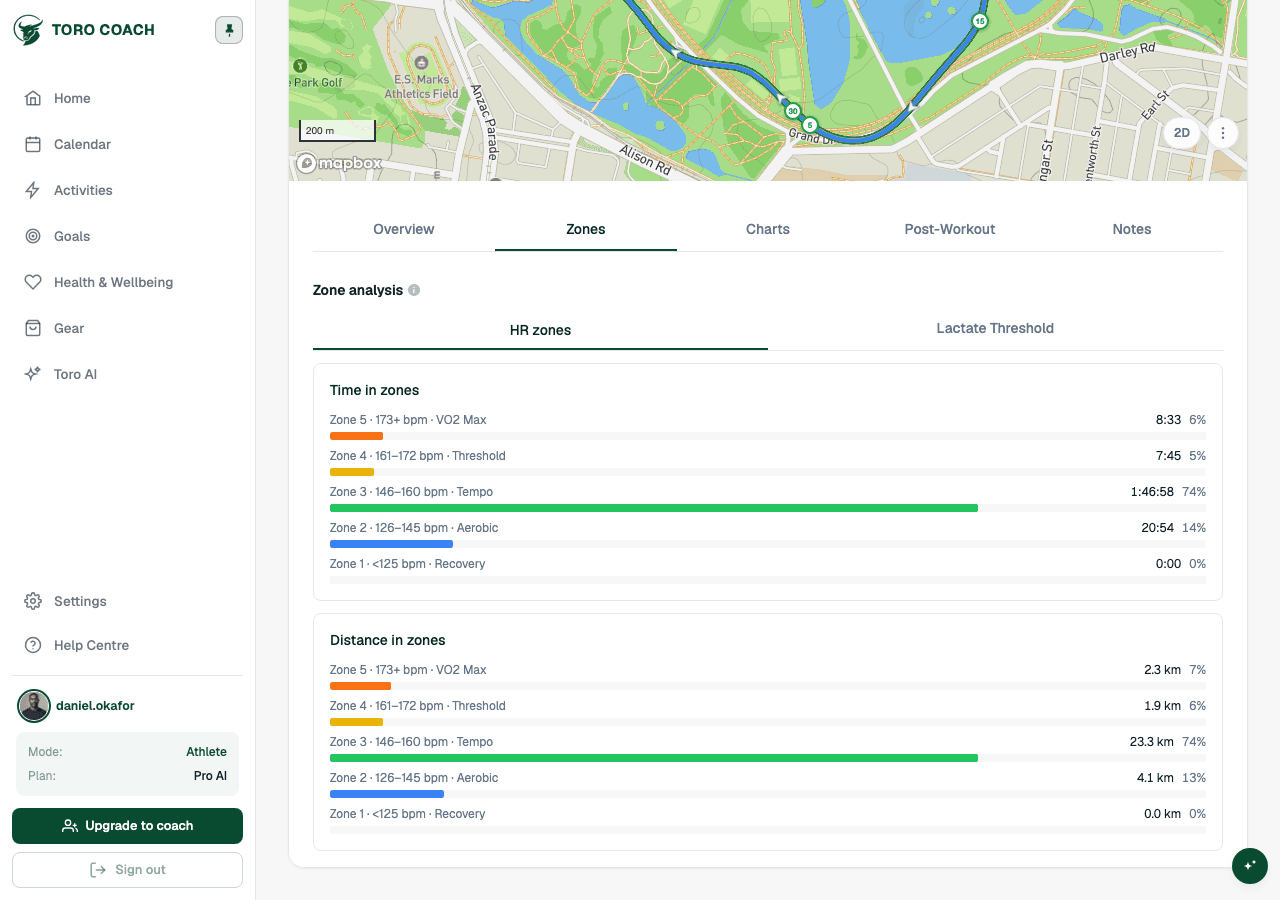
- Zones — how long you spent in each heart-rate zone (only for cardio sports with zone data).
- Laps — your device’s recorded laps, if any.
- Charts — every recorded metric plotted over time, linked to the route map.
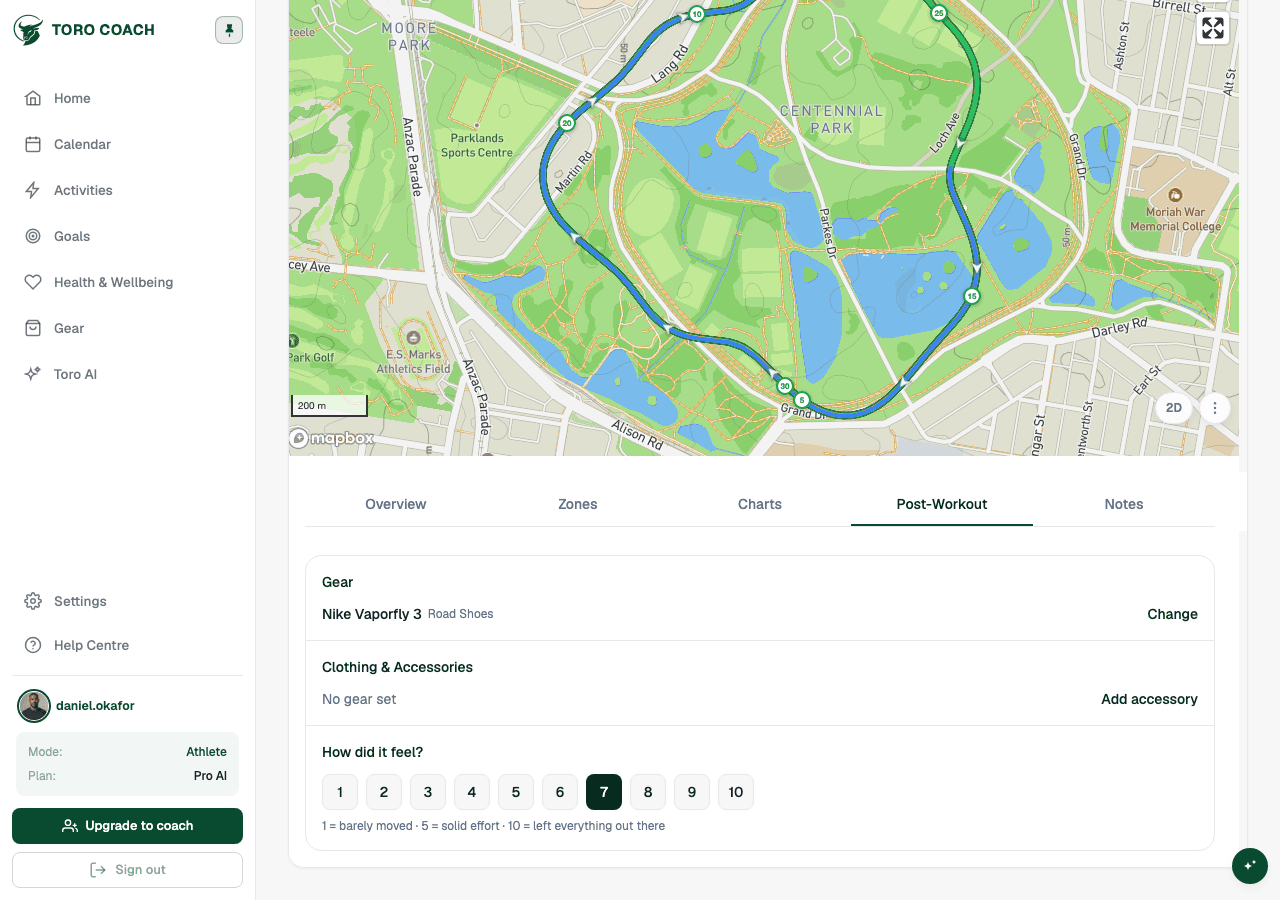
- Post-Workout — how the session felt (RPE) and which gear you used.
- Notes — your conversation with your coach and a full history of changes.
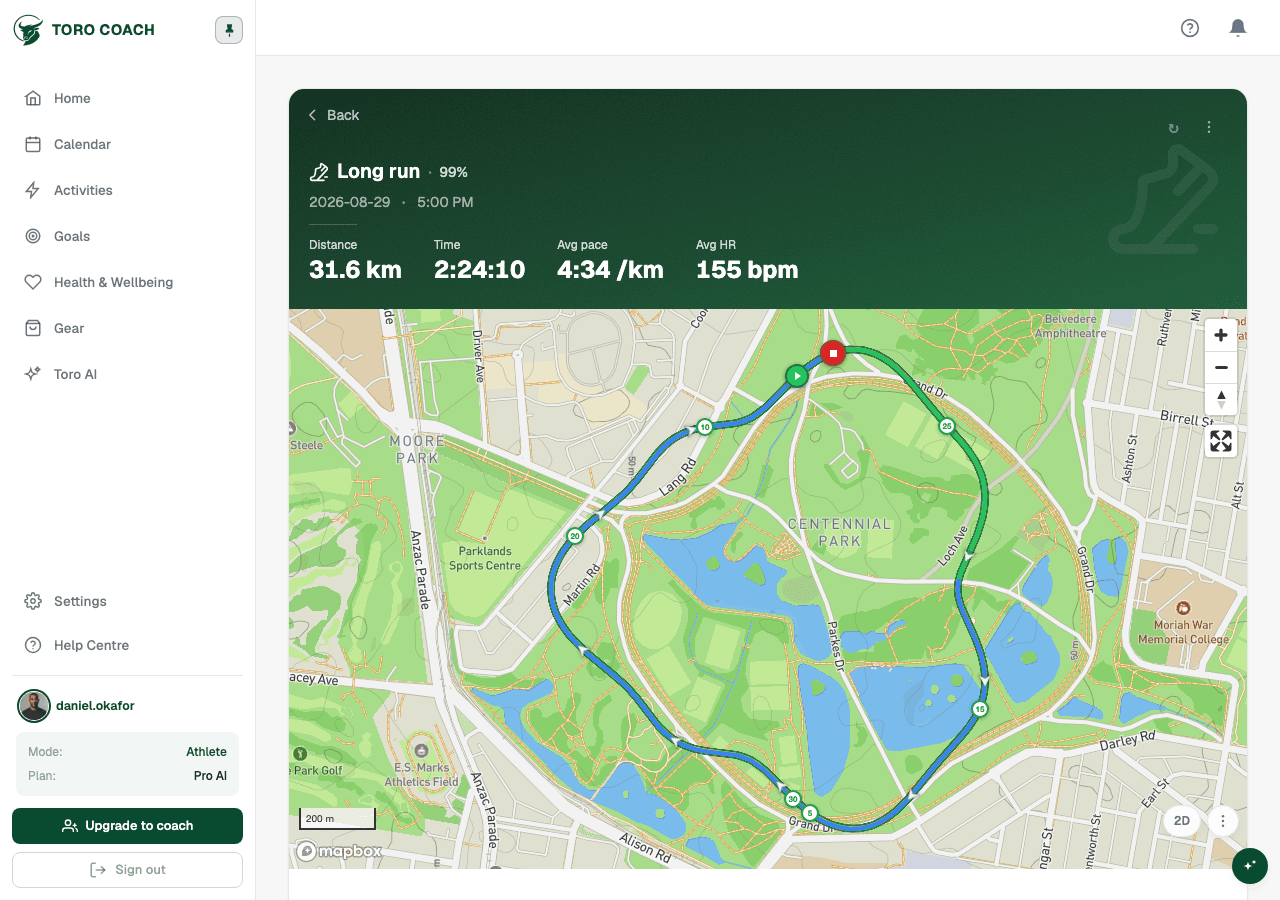
Overview: plan vs. actual
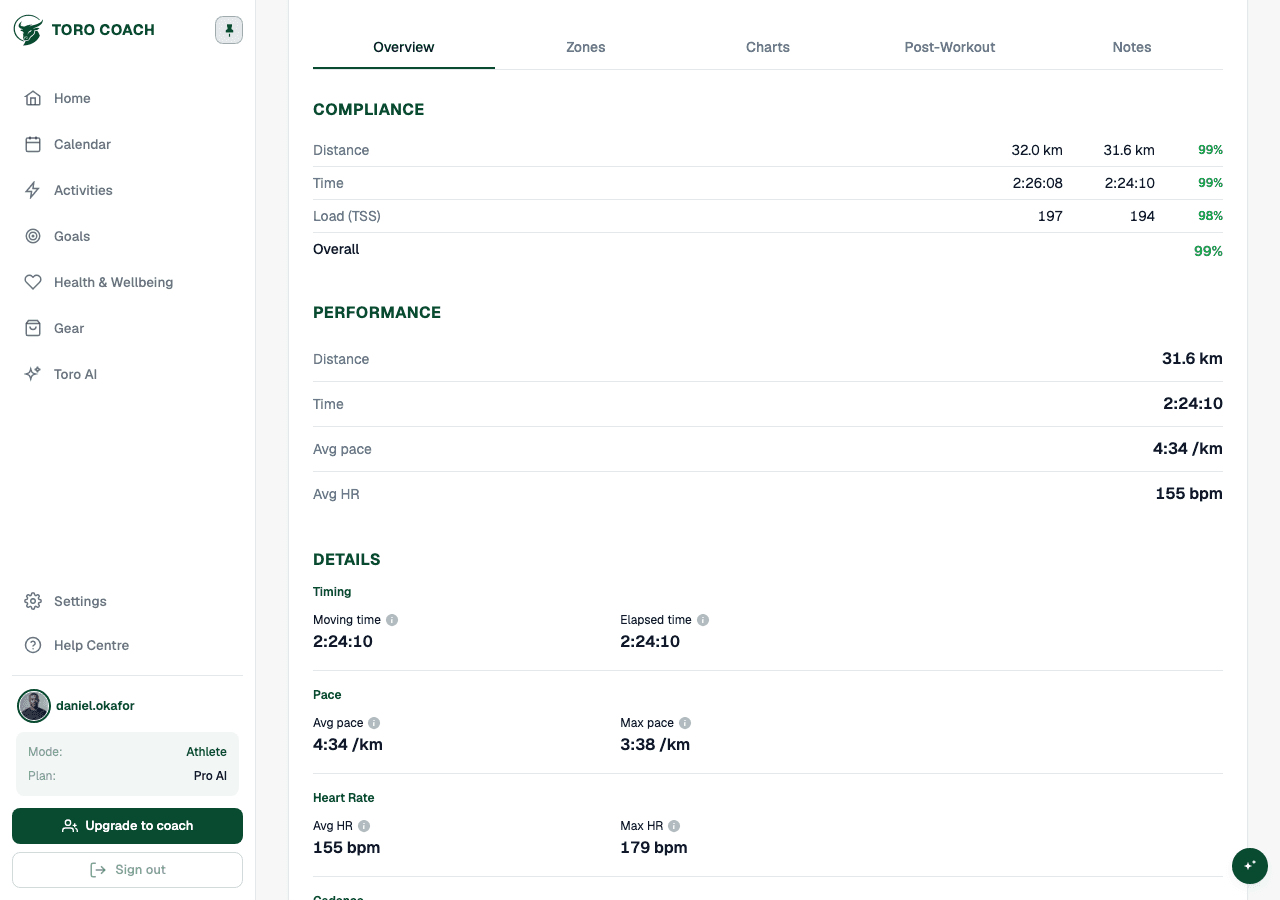
When a session was planned, Overview opens with the workout profile (the prescribed structure) and a Compliance section comparing what was planned against what you actually did.
- Compliance shows an overall score and band (on track, watch, or off) alongside distance, duration, and load comparisons.
- A mixed plan (combining distance-based and timed segments) shows “Mixed plan” instead of one score, since the two can’t be combined fairly.
- Performance lists your actual stats for the sport — distance, time, average pace or speed, heart rate, or power.
- Details lists every other recorded metric, grouped by category, each with a short definition available on tap.
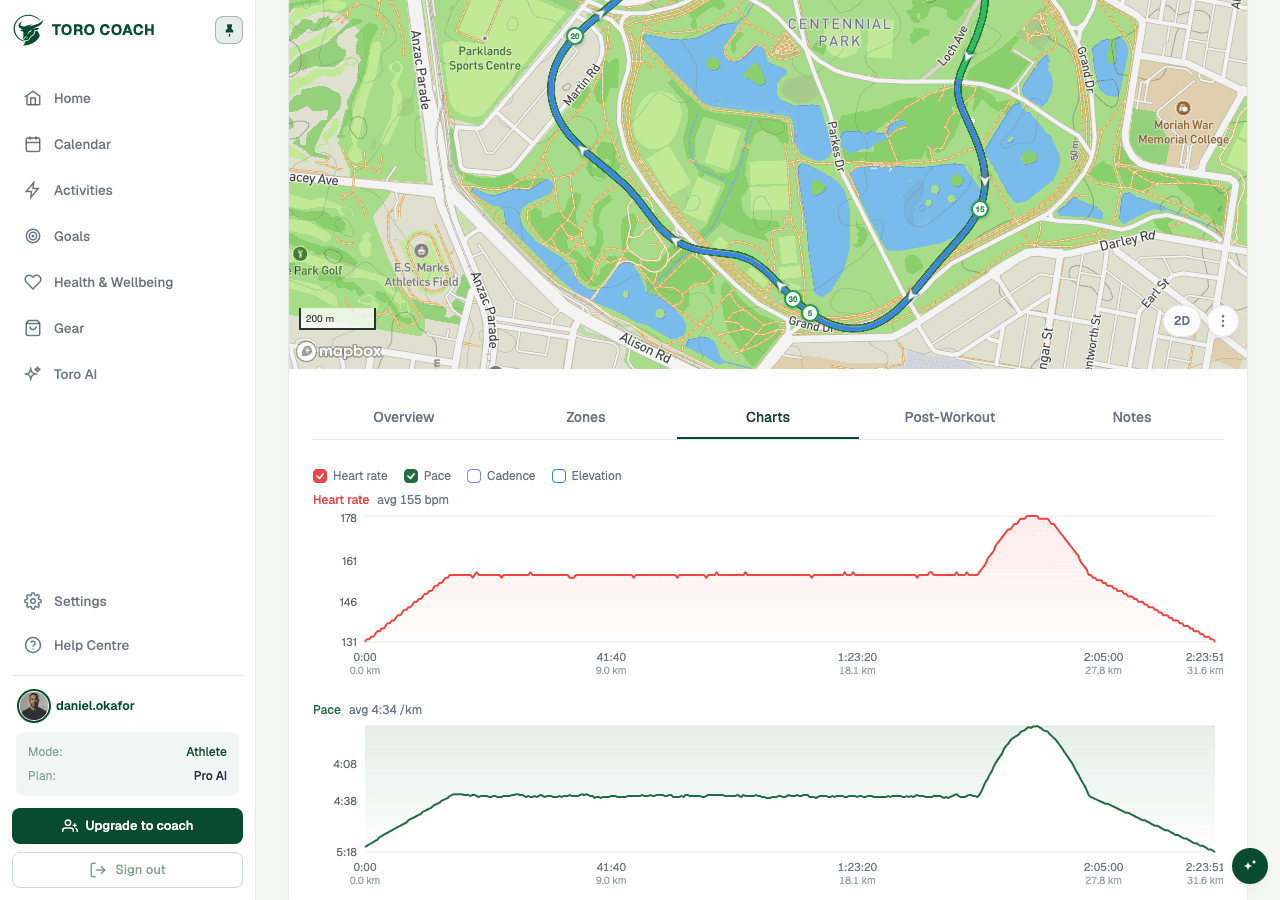
Charts and the route map
The Charts tab plots every available metric (heart rate, pace or speed, power, cadence, elevation) over time and distance at once. Hover or tap any chart to see the exact value at that moment — the route map above updates its marker to the same point.
- Toggle metrics on or off using the checkboxes above the charts.
- Hovering the route itself works the other way too — hover or tap the map to see the matching chart values.
- Switch the map between 2D and 3D using the toggle in its corner. 3D tilts the camera and renders real terrain relief; hovering the route while in 3D also shows elevation at that point.
- Use the settings icon to change map style (Outdoors, Satellite, Dark), show kilometre or lap split markers, or replay the route as an animated draw with a runner, cyclist, or swimmer marker depending on the sport.
Zones and laps
Zones shows how long you spent in each heart-rate zone as a set of colour-coded bars, using the zone boundaries in place the first time you opened this session. Laps shows your device’s recorded laps in a table — pace, heart rate, and elevation per lap — when your device recorded any.
Post-Workout: effort and gear
- Rate how the session felt using RPE (rate of perceived exertion).
- Tag the gear you used — shoes, bike, or other equipment — so Toro Coach can track usage towards a replacement.
- These fields stay editable after the fact if you forgot to fill them in right away.
Notes: your coach thread and change history
Notes holds the conversation about this specific session — add context for your coach, or read their feedback. If you are self-coached, use it as a personal log instead.
Expand Change history to see a full audit trail of edits, re-maps, and score recalculations for this session.
Fixing a mismatched or missing activity
Sometimes the wrong activity gets matched to a plan, or none does. Use the ⋮ menu in the top right to fix it.
- Re-map activity — choose the correct activity from ones recorded on the same day or within a matching window.
- Unlink activity — remove the current match without picking a new one.
- Recalculate — re-score compliance without changing which activity is linked, useful after your plan or zones change.
- Sync — re-fetch this activity from your training platform and rescore it, if the source data changed.
Sending a workout to your watch
If your training platform account is connected, send a planned workout directly to your watch from the ⋮ menu.
- Send to Watch — pushes the workout for the first time.
- Update on Watch — re-sends it after you or your coach change the plan.
- Remove from Watch — deletes it from your upcoming watch workouts.